Invoice from a booking: InvoiceXpress and FIZ guide
Connect your InvoiceXpress or FIZ account to agend.pt and issue the invoice-receipt from the booking, with amount and tax ID pre-filled. Step by step.
It is 8:15 pm. The shop is closed, the till is counted and you still have seven invoices to issue. You open your invoicing program, look up the customer, copy a tax ID (NIF) from a WhatsApp message, go back to the calendar to check what the haircut and beard cost, and repeat. Seven times.
That copy-and-paste work adds nothing to the business, and it is where mistakes come from: a swapped NIF, a forgotten amount, an invoice left for "tomorrow". Now you can issue the invoice-receipt (fatura-recibo) straight from the booking in agend.pt, through your own InvoiceXpress or FIZ account.
How it works, in a few lines
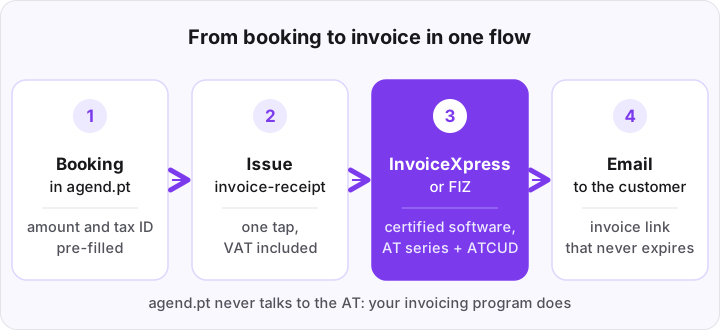
You do not have to change invoicing program. You connect your own InvoiceXpress or FIZ account to agend.pt once, on the Integrations page. From then on every booking has a button to issue the invoice-receipt.
A few important points before you start:
- The invoice is issued in your name and with your NIF, in a series registered with the tax authority (AT), with an ATCUD, by your certified program.
- InvoiceXpress and FIZ are separate subscriptions that you pay to each provider. agend.pt neither replaces nor includes them.
- agend.pt never talks to the AT. Your invoicing program communicates the documents, according to how your account is set up there.
- Invoicing is available on the Premium (€11.99/month) and Pro (€17.99/month) plans.
Before you start: what you need
An active account on one of the two programs, with at least one series registered with the AT for invoice-receipts and credit notes. If you have not picked a program yet, the invoicing guide for service professionals compares the options and explains what a series and an ATCUD are.
You also need to know which VAT applies to your services. If you are unsure (for example, whether you are exempt), talk to your accountant before connecting.
Connect InvoiceXpress in 3 steps
- In InvoiceXpress, open Configurações → Dados e Integrações → API (Settings → Data and Integrations → API) and copy the account name and the API key.
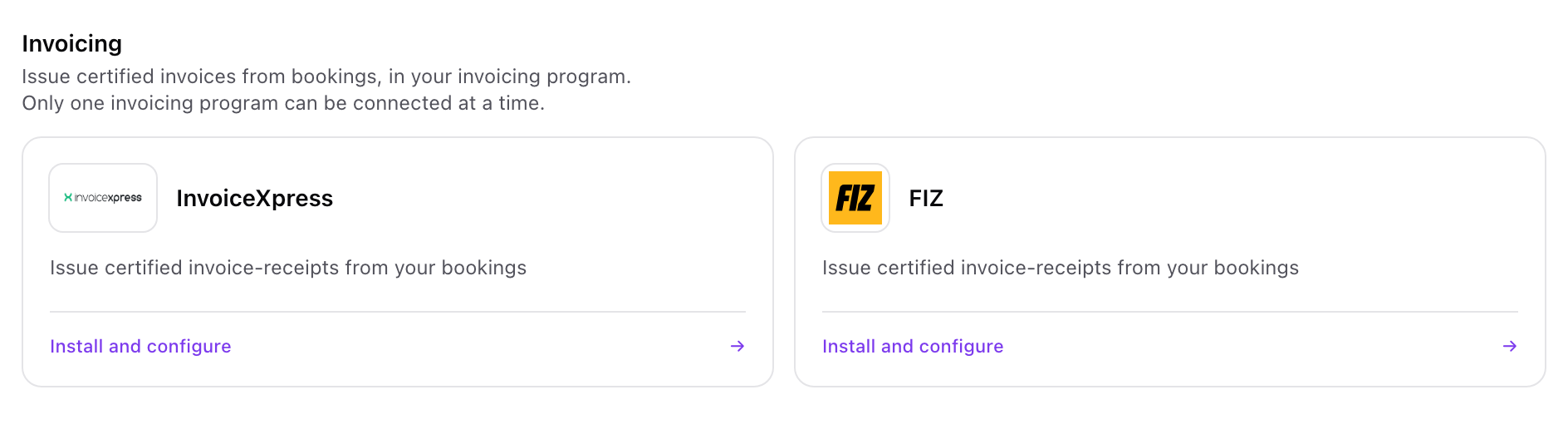
- In agend.pt, open Integrations, choose InvoiceXpress, paste the account name and key, and click Continue.
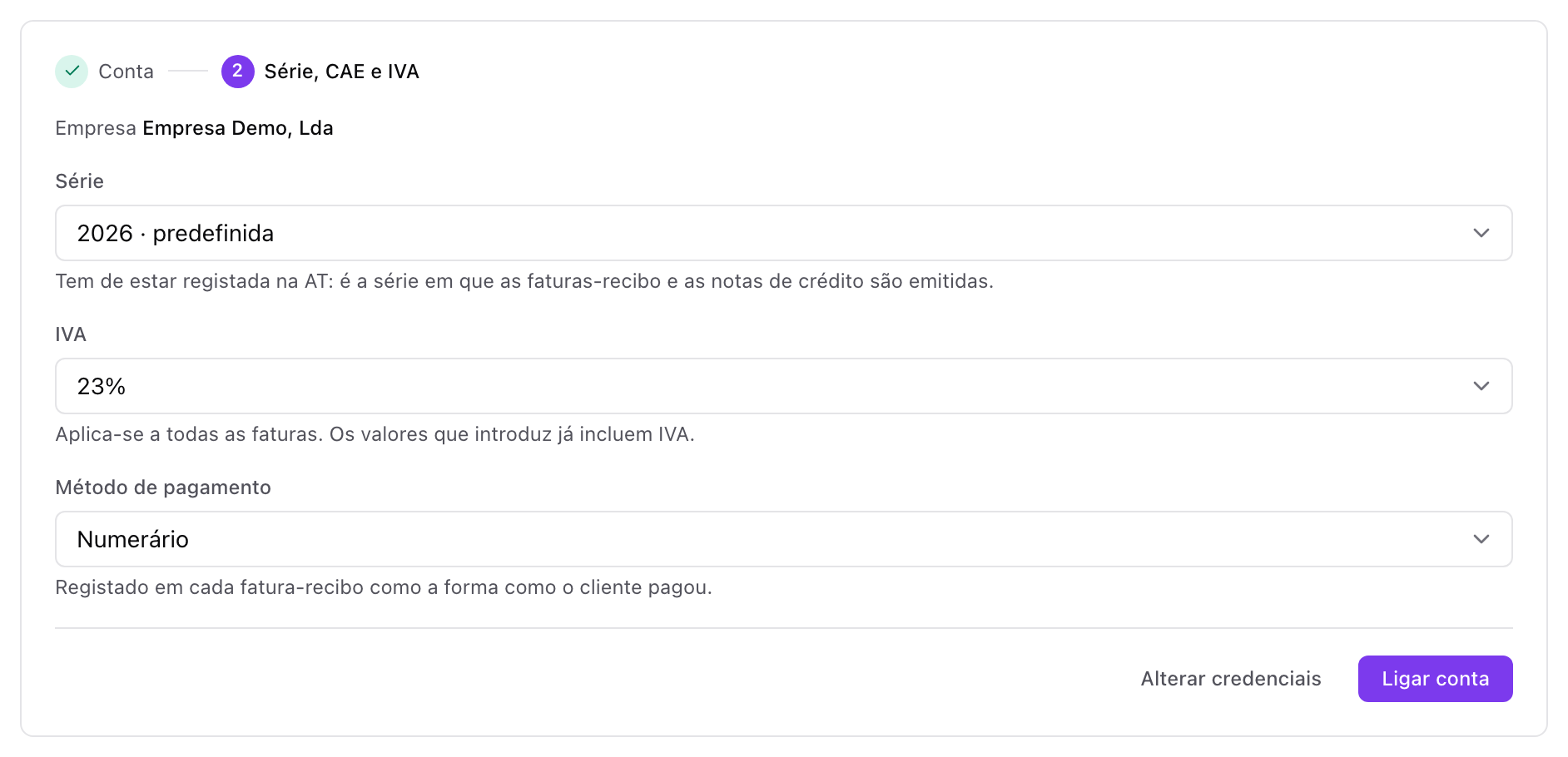
- Pick the series and the VAT and click Connect account.
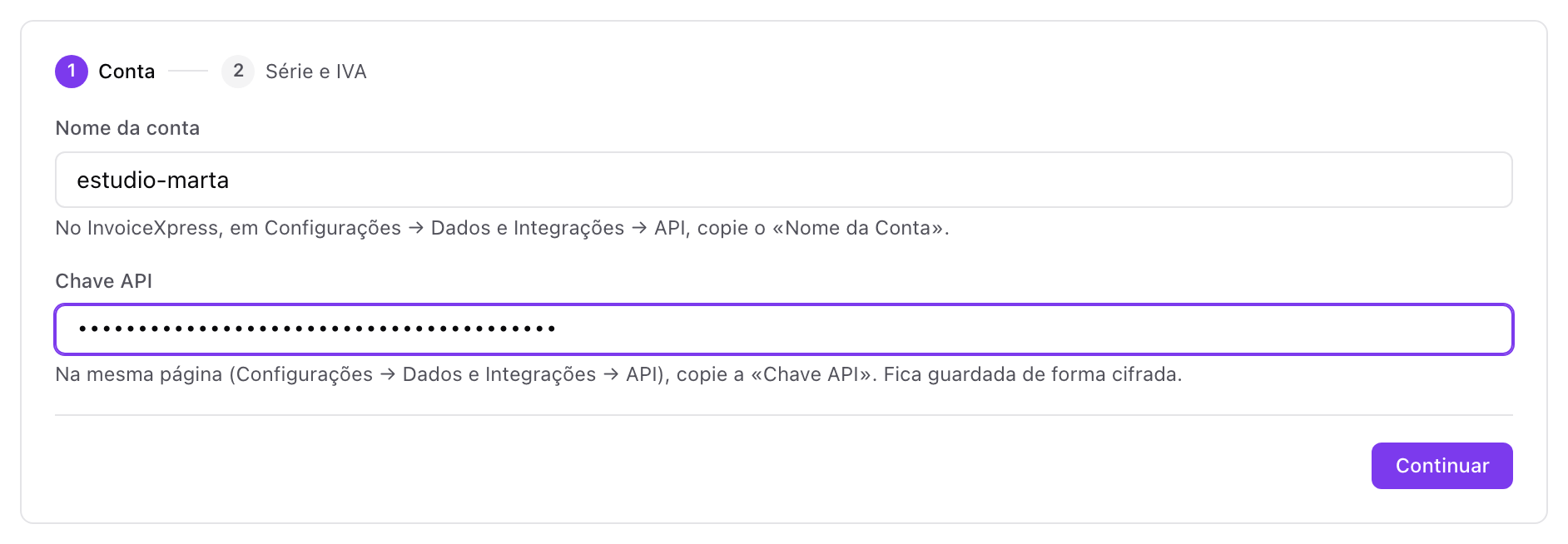
The key is stored encrypted. If the credentials are wrong, agend.pt tells you straight away instead of failing when you need an invoice.
Connect FIZ in 3 steps
- In FIZ, open Definições → Integrações (Settings → Integrations) and create an API key. FIZ only shows it once, so copy it right away.
- In agend.pt, open Integrations, choose FIZ, paste the key and continue.
- Pick the series, the activity (CAE), the VAT and the payment method (cash, card, MB WAY, Multibanco, bank transfer or other), and connect the account.
If FIZ is not ready to issue yet (for example, no AT link or no series), agend.pt tells you what to fix in FIZ before you save.
Choose the series and VAT once
The series must be registered with the AT for invoice-receipts and credit notes, because both documents are issued in it. agend.pt only lists usable series.
For VAT you can choose 23%, 13%, 6% and 0%. The rate you pick applies to every invoice issued from agend.pt, and the amounts you enter already include VAT. With 0% you must give the exemption reason:
- M10: exemption regime, art. 53 of the VAT Code.
- M07: exempt, art. 9 (for example, acts of the covered health professions).
- Another M code, if your case is different.
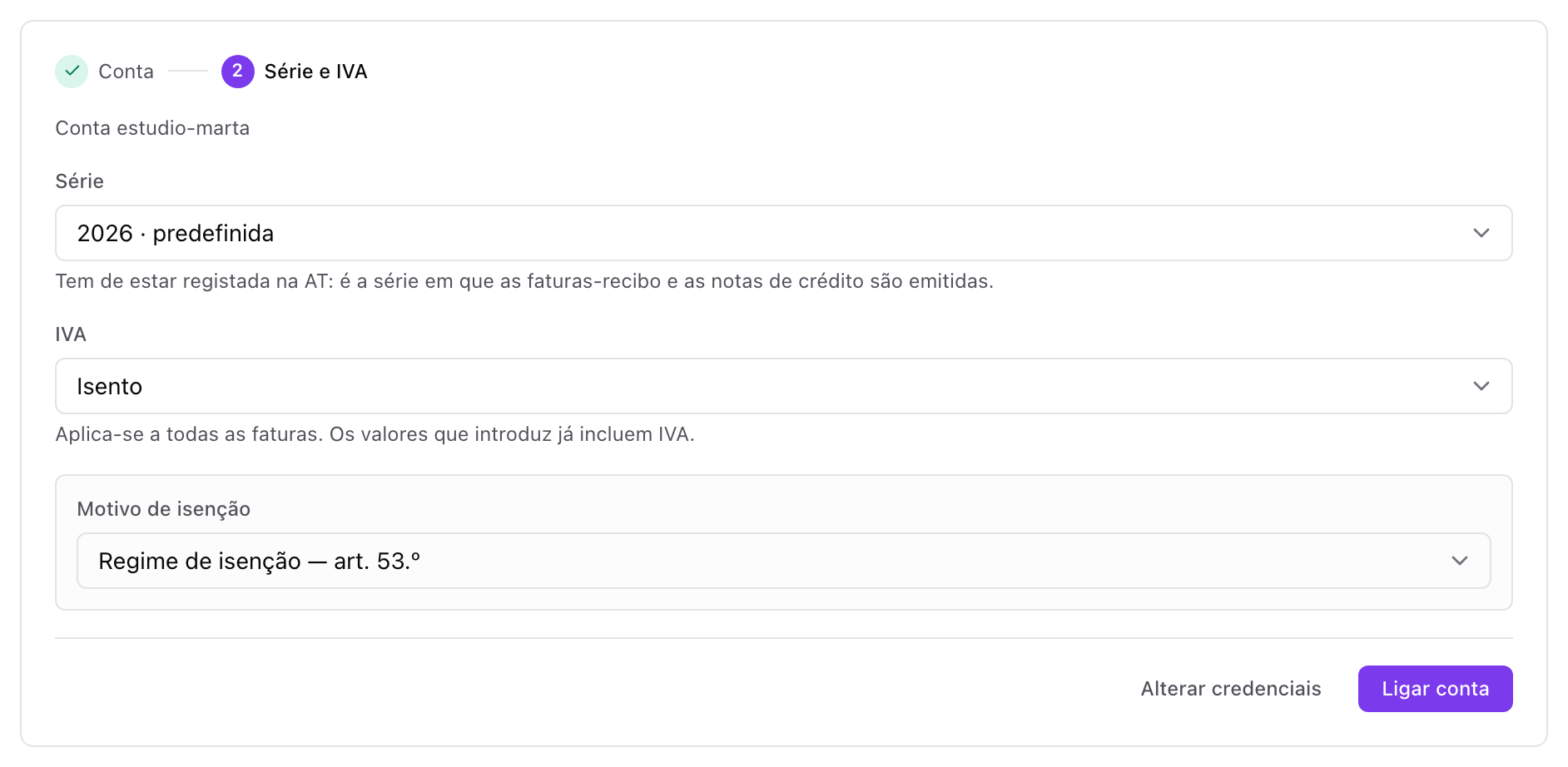
One rate per connection: if you sell services at different rates, check with your accountant which rate to configure before issuing your first invoice.
Issue the invoice-receipt from the booking
Open a booking and click Issue invoice. The form comes pre-filled:
- Amount: the service price, VAT included. If the customer paid a deposit online, agend.pt reminds you to account for it in the total.
- Customer: the name and NIF come from the customer record. Leave the NIF blank for final consumer (Consumidor final).
- NIF validation: as you type it shows "valid NIF" or "invalid NIF: check the 9 digits".
- Email: if you want, send the invoice to the customer right away.
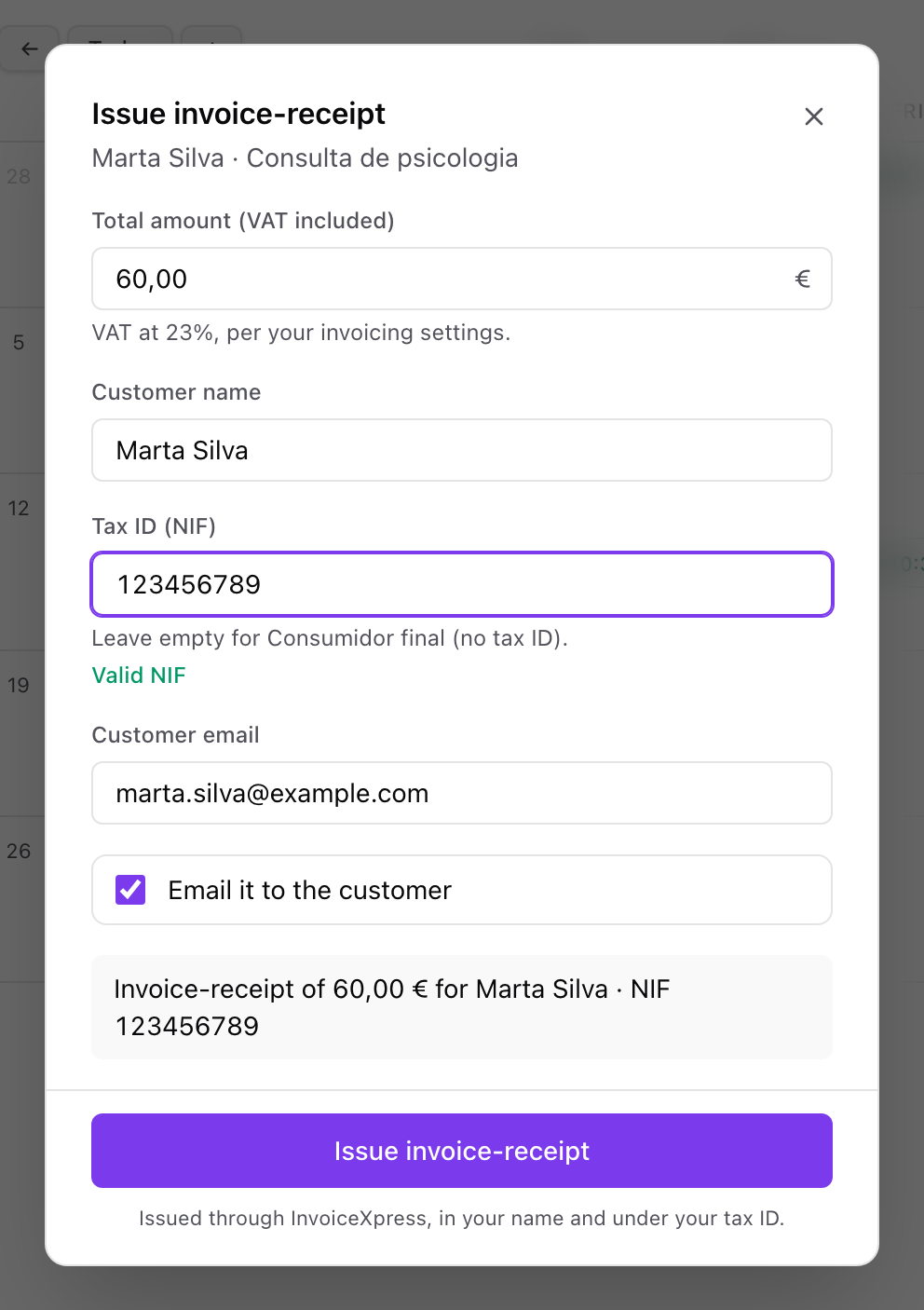
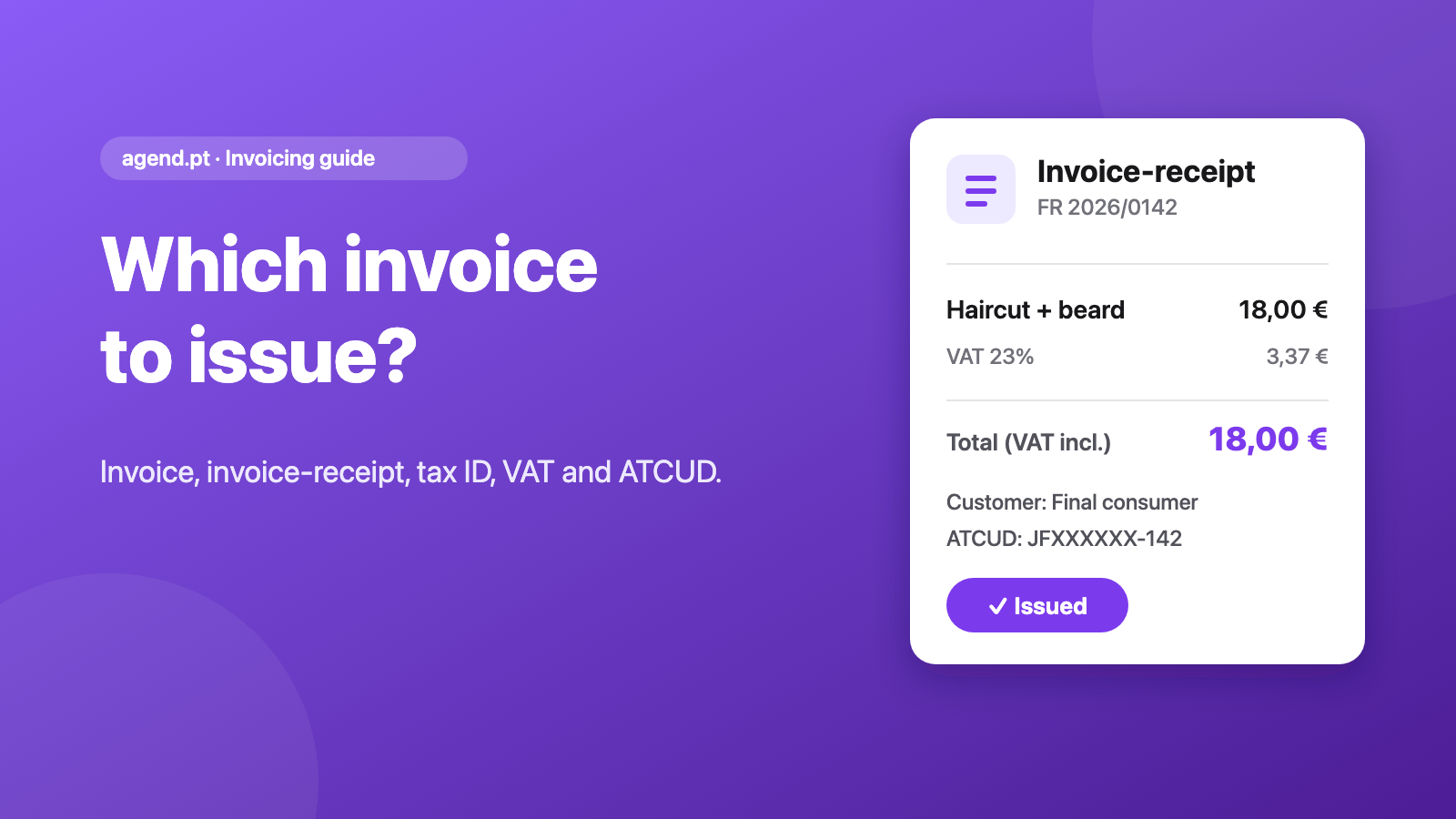
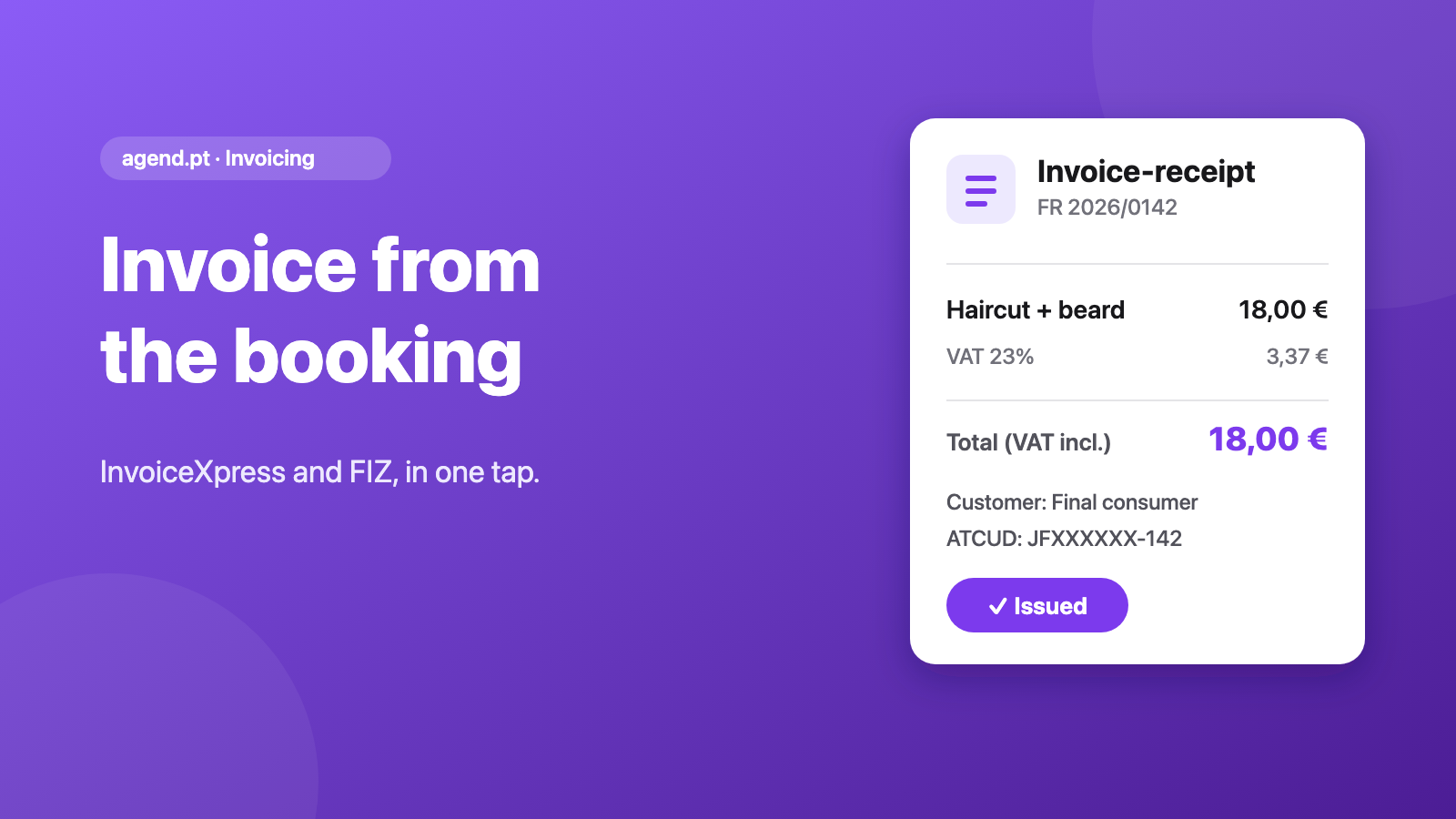
Click Issue invoice-receipt. Issuing runs in the background and usually takes a few seconds: the invoice goes from "pending" to issued. The booking then shows the issued invoice, with its number, ATCUD and program, plus View invoice and Copy link buttons.
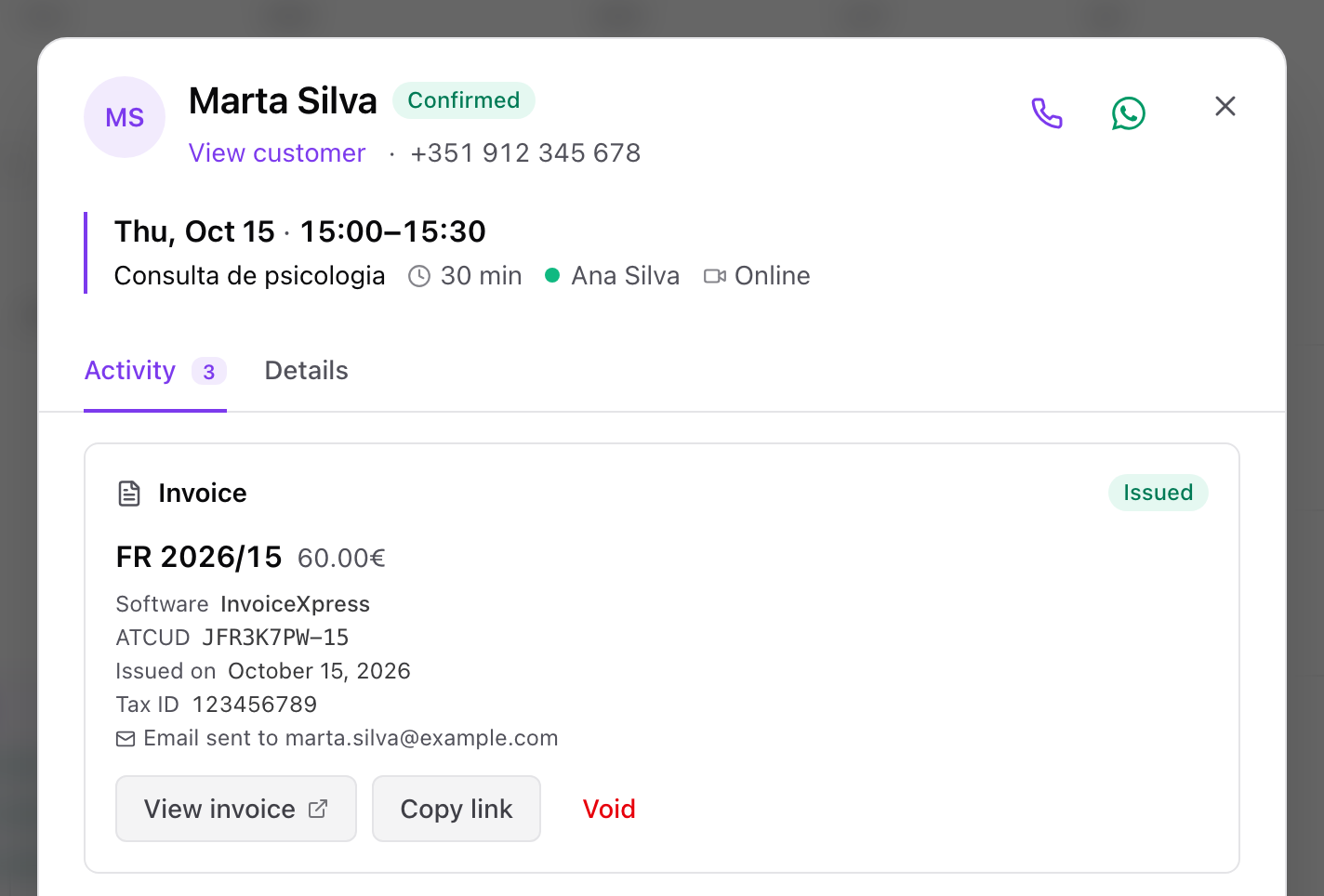
Cancelled, declined or no-show bookings cannot be invoiced, and each booking has one invoice. If issuing fails, you see the reason. Retry resends exactly the same data; if the data is the problem (a wrong NIF, for example), you can discard the failed invoice, as long as it has no number yet, and issue another one.
Email the invoice to the customer
With Send to customer by email on, the customer gets a message with the invoice and a link to the invoice. With InvoiceXpress the link is permanent; with FIZ it keeps working while your FIZ account stays connected to agend.pt. If you forgot to add the email, you can always use Copy link and send it yourself on WhatsApp.
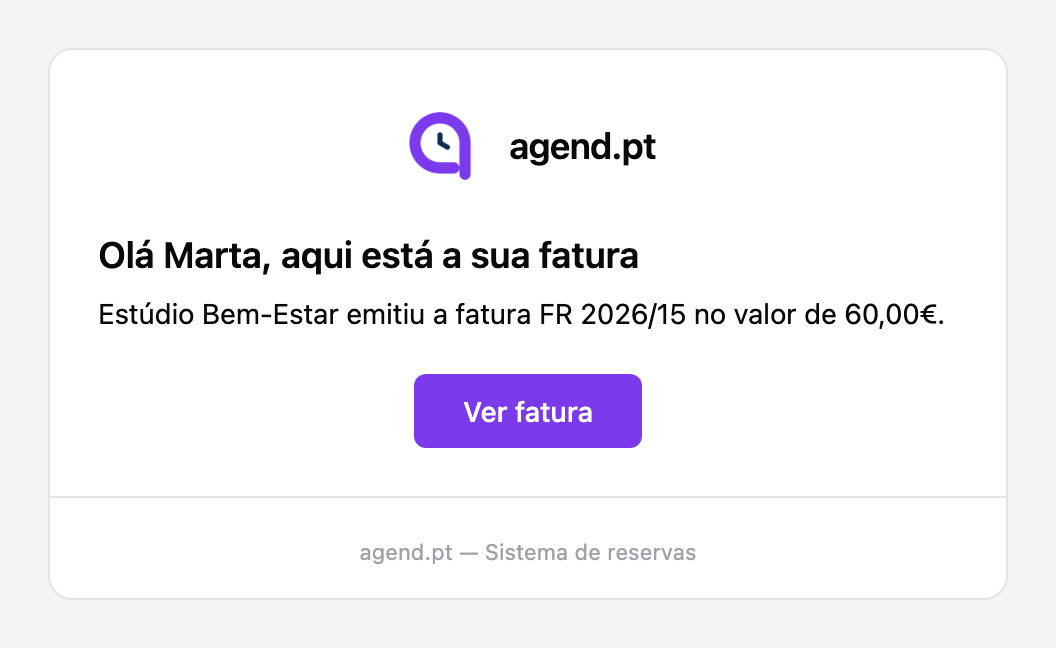
The email goes out once. If it does not go out, the invoice is not undone: it already exists in your program, and you have the link to send manually.
Made a mistake? Void it with a credit note
Wrong amount, a customer who asked for a refund, a swapped NIF: instead of deleting, you tap Void and confirm. agend.pt shows how much will be credited and issues a credit note in the same account, in one action.
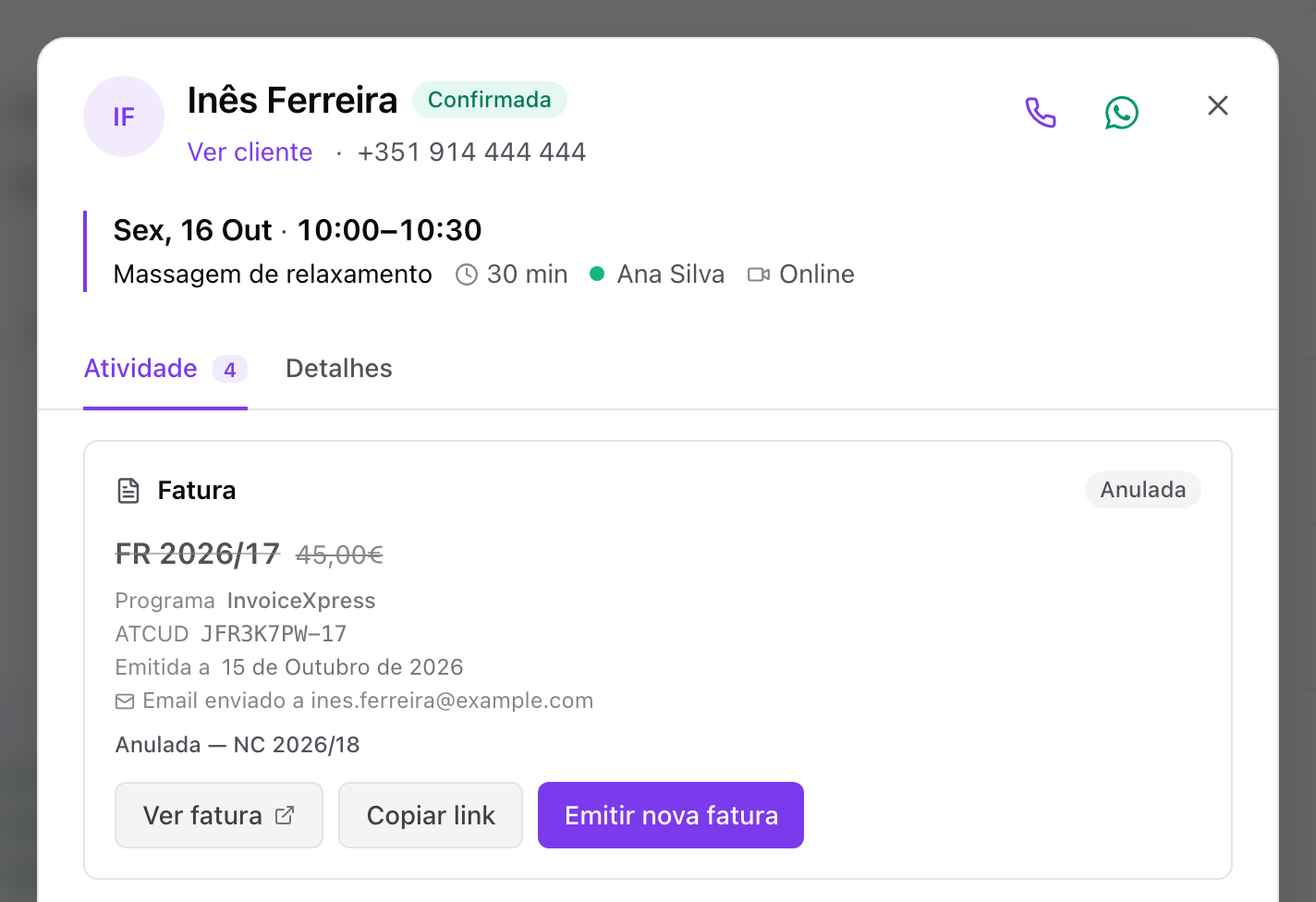
The voided invoice is marked "Voided" with the credit note number. The action cannot be undone, and afterwards you can issue a new, correct invoice.
An issued invoice is not deleted: it is corrected with a credit note. That is how InvoiceXpress and FIZ keep the numbering right, and it is the corrective document the VAT Code provides for.
Ask the assistant: "invoice Pedro"
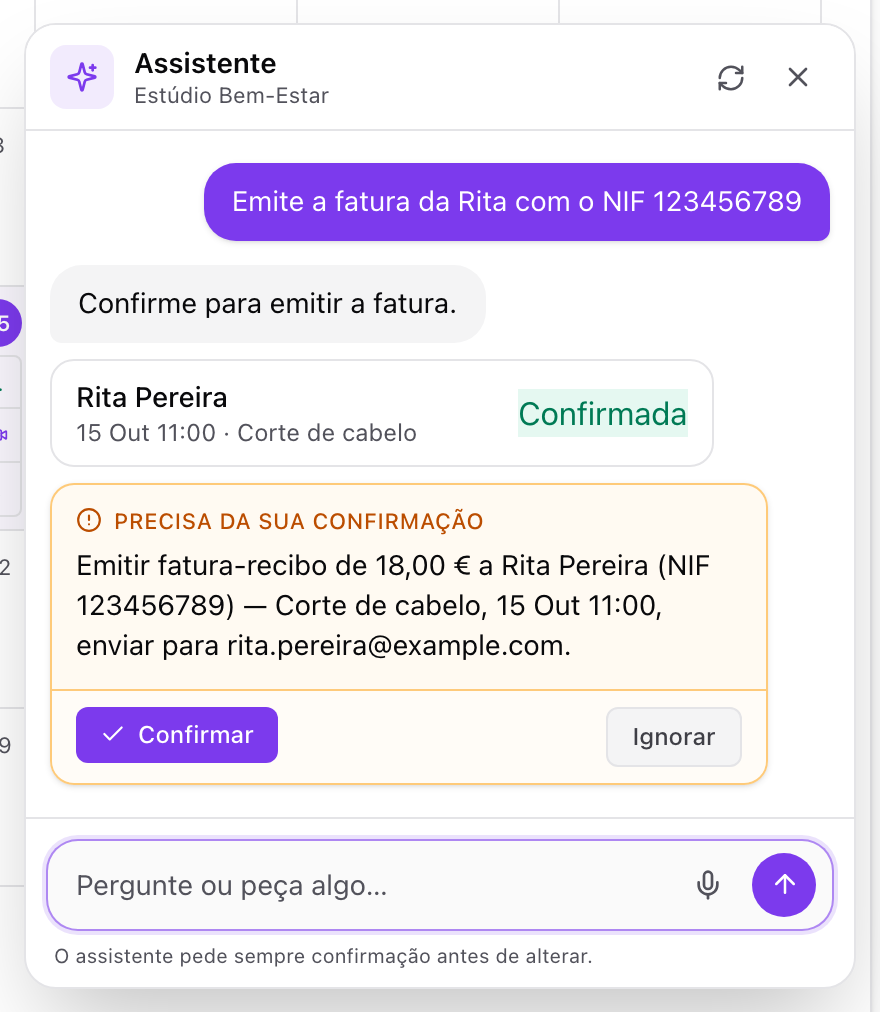
On the Pro plan, the AI assistant handles this by voice or text. Say "invoice Pedro" or "void Marta's invoice from yesterday" and the assistant finds the booking, prepares the document and shows a card with the summary, for example "Invoice-receipt of €18.00 for Pedro".
Nothing is issued until you confirm on the assistant's card. If there is more than one Pedro, the assistant asks which one.
Switching program or disconnecting
You can have only one invoicing program connected at a time. To switch from InvoiceXpress to FIZ (or the other way round), disconnect the first and connect the second.
When you disconnect, the invoices already issued stay in your account at the provider and remain visible on the bookings. You just cannot issue or void new ones until you reconnect. To void an invoice issued by a program you have disconnected, reconnect it.
Frequently asked questions
Do I need InvoiceXpress or FIZ? Yes. agend.pt is not a certified invoicing program. It uses yours, and that is where the documents are stored.
Does agend.pt report invoices to the AT? No. Your program does, according to your setup: in InvoiceXpress, by the method chosen in Configurações → Impostos e AT → Método de Comunicação; in FIZ, on issue, if the AT link is active. Check the setup with your accountant.
Whose name is on the invoice? Yours, with your NIF, in the series you chose.
Can I invoice customers without a NIF? Yes, leave the NIF blank and the invoice goes out to final consumer.
Is it included in the free plan? No. Invoicing is on the Premium and Pro plans. See the pricing.
What if InvoiceXpress or FIZ rejects the document? You see the reason on the booking. For a temporary failure, Retry resends the same data. If the data is wrong, discard the failed invoice (only possible while it has no number) and issue another; an invoice that was already issued with wrong data is voided with a credit note and a new one is issued. Invalid NIFs are caught by the form before anything is sent.
Summary and next steps
Connect your account once, choose the series and VAT, and issue the invoice-receipt from the booking instead of redoing it at night. Fewer copies, fewer errors, and the customer gets the document straight away.
Want to know more about each program? See the pages for integrations, InvoiceXpress and FIZ. If you are still unsure which document to issue, read the invoicing guide for service professionals.