Automatic Google Meet links for every online booking
See how agend.pt generates a unique Google Meet link for each confirmed online booking — and what happens when you reschedule.

Fridays at 6pm: Marta, a marketing consultant, would open Google Calendar and manually create next week's session events — one by one, with a Meet link, the client's email, and the right time. Twenty minutes of admin work, every single week. And it only took one client rescheduling for the event to sit at the wrong time and the link to point to a ghost meeting.
This article is about deleting those twenty minutes.
What happens when a customer books
With Google Calendar connected to agend.pt and a service set to online (or "online or in person", when the customer picks online):
- The customer books on your public page.
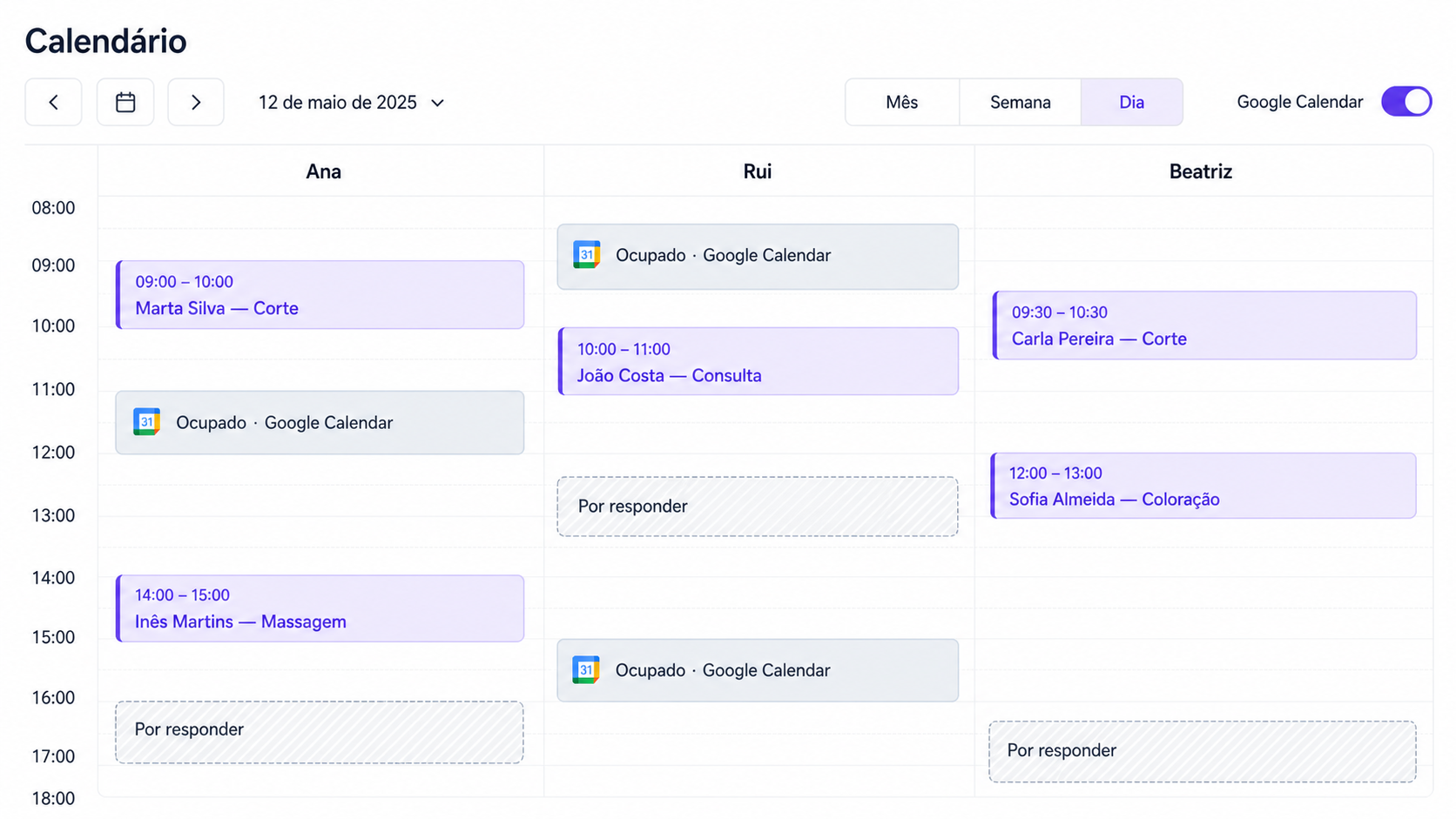
- When the booking is confirmed — automatically or by you — agend.pt creates the event in your Google Calendar with the customer as a guest.
- Google generates a unique Meet link for that meeting.
- The link shows up on the customer's booking page, in the confirmation email, and in the calendar invite.
Neither you nor the customer touches anything. At the booked time, you both click "Join meeting".
What about changes?
This is where manual systems break. On agend.pt:
- Reschedule — the Google Calendar event moves to the new time and the Meet link stays the same. The customer never hunts for a new link.
- Cancellation — the event is removed from the calendar. No orphan meetings cluttering your week.
- Proposed and accepted new time — the event follows the decision, without duplicates.
Real case: the consultant who confirmed everything on Fridays
Back to Marta. Today her "Strategy session" service is set to online, Google Calendar is connected, and auto-confirmation is on. The whole flow — booking, event, link, customer invite — happens without her.
Friday 6pm belongs to her again. And when a client asks to move from Tuesday to Thursday, Marta reschedules in agend.pt in two clicks; the Meet follows.
Not using Google Calendar? There's a plan B
Automatic Meet links are a paid-plan feature with Google Calendar connected. Without it, your online bookings stay organized:
- In Settings → Bookings, store your fixed link — your permanent Meet or Zoom room.
- Or write short instructions: "I'll call you on WhatsApp at the booked time" is a perfectly valid way to meet online.
That link or instruction appears in the confirmations of every online booking. Once you connect Google Calendar, the automatic link takes priority — with nothing else to change.
Checklist to get started
- Connect Google Calendar in Integrations (it also prevents double-bookings — see how here).
- Set your online services to "Online" or "Online or in person" in Services.
- Optional: define the fixed link in Settings as a safety net.
- Make a test booking on your public page and confirm the link lands in the email.
Your customer only needs to know one thing: what time to click. Create your booking page at agend.pt.