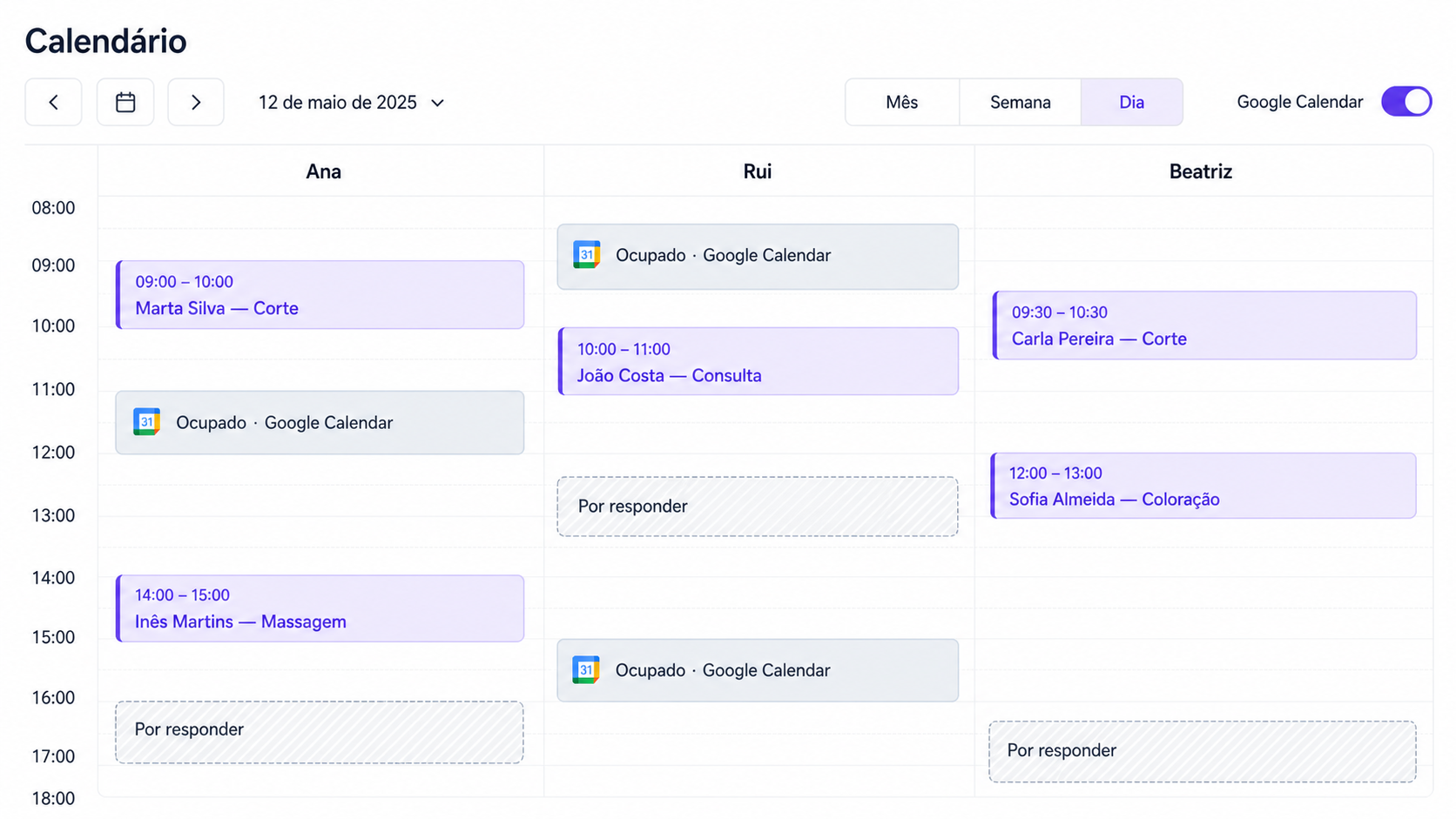
Stop double-bookings with Google Calendar
Learn how to connect online bookings to Google Calendar, block busy periods, and configure schedules and buffers to prevent appointment conflicts.

You accepted an appointment for Tuesday at 16:00. Minutes later, you notice a personal meeting already sitting in Google Calendar. Now you have to apologize, propose another time, and hope the client does not leave.
A double-booking rarely comes from carelessness. It comes from two schedules that do not talk to each other: the system where clients book and the calendar where you keep the rest of your day. The solution is to define one source of availability and connect both sides with clear rules.
Google Calendar is not an online booking system
Google Calendar is excellent for storing events and seeing your day. A booking system solves a different part of the problem: it shows services, durations, staff, and available times to the client, collects the required details, and manages the booking status.
Using a calendar alone keeps you in the middle of every conversation:
- The client asks what is available.
- You check the calendar.
- You suggest one or more times.
- The client replies later.
- You check again to see whether the time is still free.
When an online booking page is connected to the calendar, the client only chooses from viable times. Your calendar stops being a picture you have to interpret and starts informing the availability shown to clients.
Decide where each type of information belongs
Confusion falls away when each tool has a defined job.
In the booking system:
- Services, prices, durations, and buffers.
- Working hours for each professional.
- Team holidays, breaks, and time off.
- Client details, status, and booking history.
- Deposits, notifications, and operational policy.
In Google Calendar:
- Meetings, personal commitments, and time-specific tasks.
- A combined view of the day, if this is already your daily calendar.
- External events that should block availability.
Do not maintain the same rule twice. If you change working hours every week in both the calendar and booking system, sooner or later one side will be wrong. Define regular hours in the booking tool and use busy events for exceptions.
Configure real appointment hours before syncing
An integration cannot fix a poorly defined schedule. If you say you are available from 09:00 to 19:00, the booking page will try to find slots throughout that window, even when you need lunch, preparation, or admin time.
Start by recording:
- Appointment hours, not only opening hours.
- Fixed breaks during the day.
- Different days for each team member.
- Services limited to particular professionals.
- Known holidays, training, and time off.
- Minimum notice for a new booking.
For example, a clinic opens at 08:00, but the physiotherapist sees patients from 09:00 to 13:00 and 14:30 to 18:00. Public availability should follow the physiotherapist's working blocks, not the hours on the front door.
Use busy events to protect exceptions
A medical appointment, school meeting, or trip does not change your regular schedule. It is an exception. Create an event in Google Calendar and mark the period as busy so that the integration can consider it when calculating slots.
Use names you can recognize quickly, such as “Unavailable — meeting” or “Travel”. You do not need to enter personal details. For the booking system, the occupied interval matters; the reason does not.
Check these points in a test:
- The event has a start and end time instead of being only a note.
- The time zone is correct.
- The event status blocks availability.
- The event is in the calendar you connected.
- The time no longer appears on the public booking page.
Common trap: adding the commitment to a secondary calendar that is not connected. Make a test booking before sharing the page with clients.
Set service durations and buffers without wasting capacity
An appointment occupies more than the client-facing service time. A 60-minute massage may need 15 minutes to prepare the room. A colour service may require cleanup before the next client. A therapist may need time for notes between sessions.
Configure the service duration and required buffer instead of manually creating longer events. Every offered time will then follow the same rule.
Use a simple table to review the operation:
| Service | Appointment | Buffer | Total block |
|---|---|---|---|
| Haircut | 30 min | 10 min | 40 min |
| First consultation | 60 min | 15 min | 75 min |
| Facial treatment | 75 min | 15 min | 90 min |
Do not add a generous buffer to everything “just in case”. Measure actual turnaround for a week. A buffer that is too short creates delays; an excessive one hides capacity you could sell.
Organize calendars across a team
In a team, each professional needs their own availability. Sharing a single calendar for everyone sounds simple, but the system can no longer tell who is actually busy.
A healthy setup includes:
- One profile per team member.
- Schedules and services assigned to each person.
- The calendar connected to the right professional when each has an account.
- Business-wide time off for closures.
- Individual time off for holidays or training.
Then test realistic combinations. Book the same service with two professionals at the same time; it should be possible when both are free. Add a busy event for only one of them; the other should remain available.
What to do when a booking changes or is cancelled
An integration is only useful if the calendar follows the booking status. Treat the booking system as the place where you accept, decline, cancel, or change the appointment time. The update can then follow the expected workflow.
Avoid changing only the event time in Google Calendar and assuming the booking moved. The client, reminders, and dashboard may still hold the original time. Make the change in the booking system, then confirm the result in the calendar.
This rule prevents discrepancies: booking status changes in the booking system; external commitments change in Google Calendar.
A checklist for testing the integration
Before publishing your link, set aside 20 minutes to test the complete journey:
- Create a busy event in Google Calendar.
- Confirm that the time disappears from the booking page.
- Make a booking in another slot as if you were a client.
- Accept or confirm the booking.
- Confirm that the event appears in the correct calendar.
- Cancel a test booking and check the result.
- Repeat the test for every team member.
- Test next to a break and at the end of the day.
Repeat the checklist after changing time zone, connecting another account, or reorganizing the team. Trust comes from a tested workflow, not only from a button that says “connected”.
How agend.pt connects bookings to Google Calendar
On agend.pt, paid plans can connect Google Calendar to online bookings. Confirmed bookings can create calendar events, while conflict protection uses busy periods to remove times from availability. For teams, the connected staff member's calendar is considered; if they do not have a connected account, the owner's calendar is used.
You still define services, schedules, buffers, time off, and staff in agend.pt. Google Calendar keeps the view of your other commitments. This division gives clients a simple booking page and gives you a schedule that reflects the real day.
The takeaway
Preventing double-bookings does not depend on checking the calendar more often. It depends on giving each tool a clear job: the booking system manages services, availability, and clients; Google Calendar stores your other commitments. Configure real working hours, block exceptions as busy events, and test the full journey. After that, the integration works quietly — exactly as it should.