
See Google Calendar inside your agend.pt calendar
See bookings and Google Calendar commitments in one agend.pt schedule, with privacy-safe details and conflict protection for the whole team.
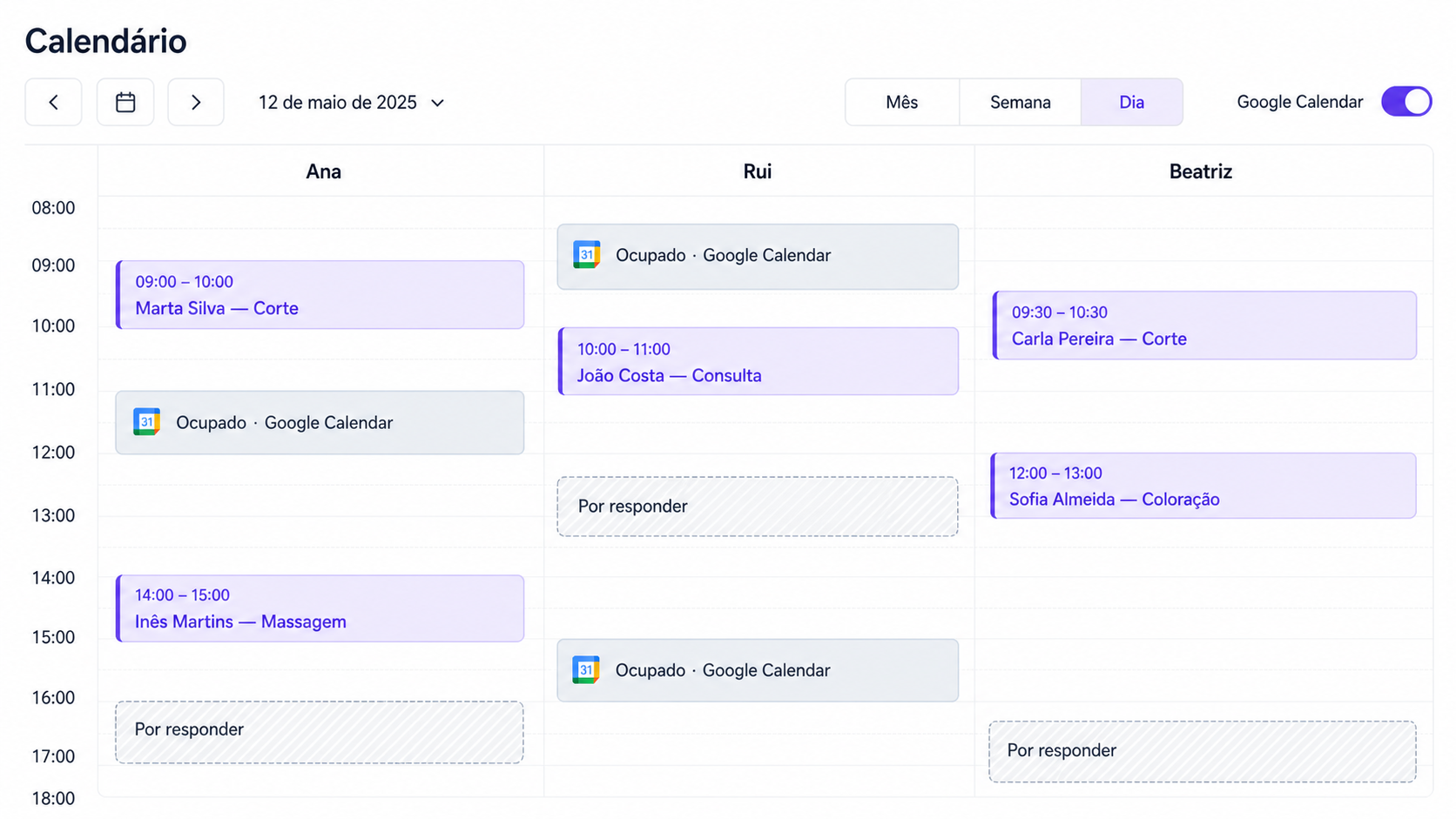
You have an agend.pt booking at 10:00 and a Google Calendar meeting at 11:30. To understand the whole day, you open one tab, check the time, switch to the other, and do the calculation again.
That calendar hopping is no longer necessary. Google Calendar commitments can now appear directly inside the agend.pt calendar, beside customer bookings. Private details stay private, while you gain a realistic view of the day before accepting, moving, or creating an appointment.
See the whole day without leaving agend.pt
The agend.pt calendar already showed bookings, statuses, services, and team members. The integration adds relevant Google Calendar periods to the same grid.
In practice, you can see:
- Confirmed and pending bookings, or bookings with a proposed new time.
- Busy meetings and commitments from Google Calendar.
- Invitations you have not answered yet.
- Events where your response is “Maybe”.
- Each professional's schedule in the team view.
The blocks appear in month, week, and day views. When you want a cleaner display, temporarily hide Google events using the control beside the calendar view switcher. This changes only what is visible on screen; it does not disconnect Google or change availability rules.
Tell bookings and commitments apart at a glance
A unified calendar only works when both event types remain easy to recognise.
agend.pt bookings keep the service colour and show the operational details you need: customer, time, and service. Imported Google events use a neutral style, a Google Calendar icon, and a status instead of the private event title.
A solid “Busy · Google Calendar” block represents a period that protects availability. A dashed “Awaiting response” block keeps an invitation visible for context without automatically removing the time from your public page. The same principle applies to a “Maybe” response: you can see the commitment, but availability is only blocked when its status warrants it.
This distinction is especially useful when creating a booking manually. Before choosing a time, you can see that a consultation, meeting, or trip exists in the external calendar without learning its private subject.
Keep private details in Google Calendar
Showing everything relevant does not mean copying everything.
For the calendar view, agend.pt uses only:
- Start and end time.
- Availability status.
- Invitation response status, when applicable.
The event name, description, location, guests, and remaining details stay in Google Calendar. The dashboard only shows enough information to tell whether the period is busy, available, or still waiting for a response.
Privacy rule: the business calendar needs to know when you are unavailable. It does not need to know why.
Conflict protection keeps working in the background
The visual layer and availability protection complement each other, but they are not the same setting.
When conflict protection is enabled, a busy Google Calendar event can remove overlapping times from the public booking page. If you try to create a manual booking over that period, agend.pt can also warn you before continuing.
Hiding Google blocks from the calendar does not disable this protection. It is only a display preference. To pause synchronisation, use the integration controls; to remove it completely, revoke the connection from the Integrations page.
If you are still defining schedules, breaks, and buffers, read the guide to preventing double-bookings with Google Calendar. The integration protects exceptions, but regular working hours still need realistic rules.
Every team column tells a different story
A team schedule should never hide who is actually busy.
In day view, each professional has their own column. Bookings sit under the person responsible, while Google Calendar periods appear under the user who connected that account. Ana's meeting does not automatically block Rui or Beatriz.
When a staff member has not connected a Google account, existing availability rules can use the business owner's calendar as a fallback. The clearest setup, however, is for each professional to connect their own account when they manage different external commitments.
For example, Ana has training from 14:00 to 16:00 in Google Calendar. Rui is free during the same period. In team view, the neutral block appears in Ana's column while Rui remains available for a customer booking.
A simpler daily workflow
Imagine a normal Tuesday in a three-person salon:
- Open day view in the agend.pt calendar.
- See confirmed bookings in colour under each professional.
- Identify two busy blocks imported from Google Calendar.
- Notice an “Awaiting response” invitation late in the afternoon.
- Create a manual appointment with the only professional who is genuinely free.
- Open Google Calendar only if you need the private details of a commitment.
The benefit is not replacing Google Calendar. It is no longer consulting it for every small decision. agend.pt becomes the business's operational view, while Google keeps the commitments and their full context.
Connect and manage everything under Integrations
The connection now lives where you naturally expect to find it: Integrations.
Open the dashboard, choose Integrations → Google Calendar, and connect the Google account you use for your commitments. From there, you can:
- Enable or disable synchronisation.
- Reconnect when access expires.
- Check the current connection status.
- Remove the integration completely.
“Disable” pauses Google Calendar use inside agend.pt without deleting stored credentials. “Remove Google Calendar” goes further: it stops active channels, revokes agend.pt access in your Google Account, and deletes the stored tokens from agend.pt. Events already created in Google Calendar remain there, and you can reconnect later.
The integration is available on paid plans. If the plan ends, an existing Google connection remains accessible so you can remove it and revoke access.
Checklist for testing the unified view
After connecting the account, run a short test:
- Create a busy event in Google Calendar.
- Confirm that its block appears in the agend.pt calendar.
- Check that no title, guest, or location is displayed.
- Create an invitation and leave it unanswered.
- Confirm that it uses a different style and does not block the slot.
- Switch between month, week, and day.
- Hide and show Google Calendar again.
- In a team, confirm that the event appears under the right person.
- Test availability on the public booking page.
A calendar that represents the real day
The most useful calendar is not the one with the most information. It is the one that brings together the right information at the moment of a decision.
With the Google Calendar integration in agend.pt, bookings and external commitments share one view without copying private details. You can see who is busy, who can still receive a customer, and where an invitation needs attention. Fewer tabs, less mental arithmetic, and a schedule that looks more like the day you will actually have.